
Taking a screenshot on your Lenovo ThinkPad is easier than you think. Whether you want to save a funny meme, capture an error message, or share something important with a coworker, screenshots make life simple. The good news? You have many ways to do it. And none of them are hard.
TLDR: You can screenshot on a Lenovo ThinkPad using the Print Screen (PrtSc) key, Windows + Shift + S, or the Snipping Tool. Each method lets you capture different parts of your screen. Some save automatically, while others let you edit before saving. Choose the one that fits what you need.
Method 1: The Classic Print Screen (PrtSc) Key
This is the old-school way. It works fast. And it works every time.
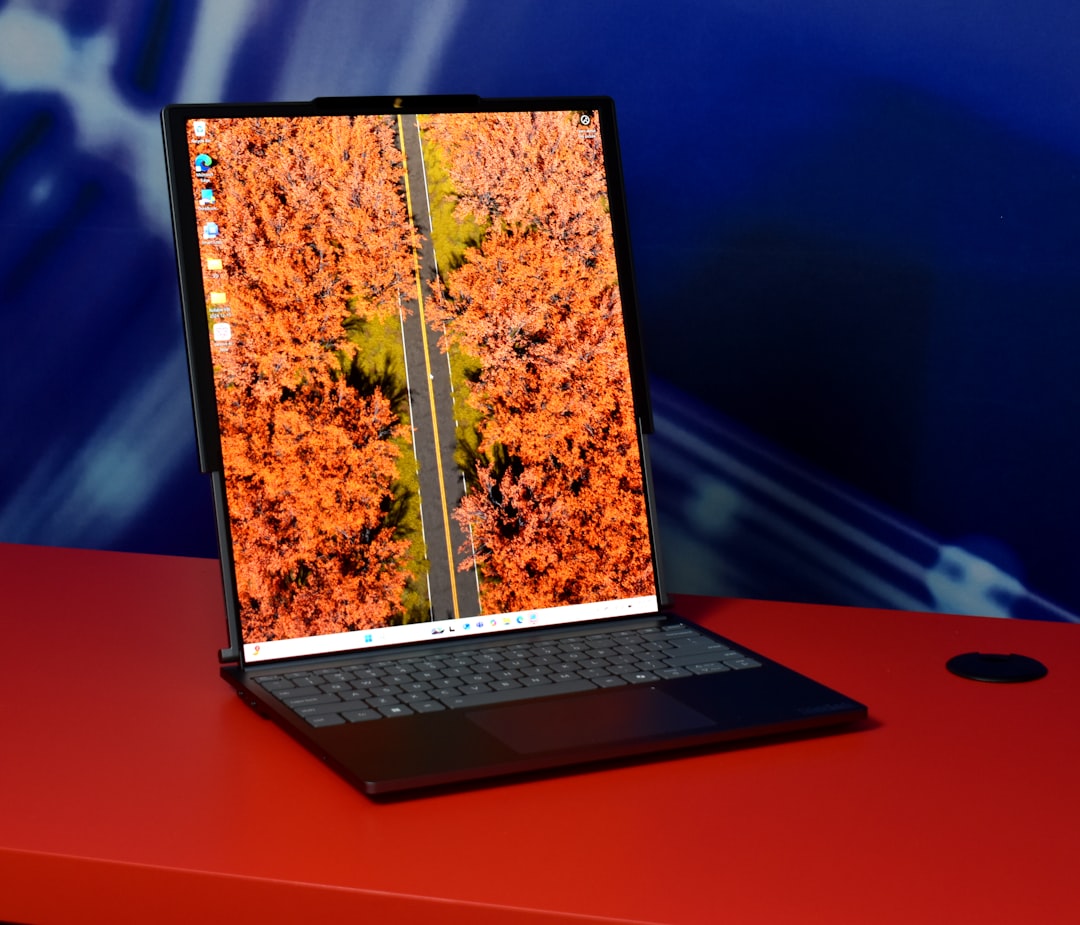
Look at the top row of your keyboard. Find the key labeled PrtSc, PrtScn, or Print Screen.
Here’s how to use it:
- Press the PrtSc key once.
- Nothing seems to happen. That’s normal.
- Open Paint or Microsoft Word.
- Press Ctrl + V to paste.
- Save the file.
That’s it. You just captured your entire screen.
Pro Tip
On some ThinkPads, you may need to press:
- Fn + PrtSc
If pressing PrtSc alone doesn’t work, try adding the Fn key.
Method 2: Windows + Print Screen (Auto Save)
Want to skip pasting into Paint? This method saves automatically.
Do this:
- Press Windows Key + PrtSc at the same time.
Your screen will dim for a second. That means it worked.
To find your screenshot:
- Open File Explorer.
- Go to Pictures.
- Click the Screenshots folder.
Your image will be there waiting for you.
Fast. Clean. Simple.
Method 3: Alt + Print Screen (Active Window Only)
Sometimes you don’t want everything on your screen. You only want the active window.
This method captures just the window you’re working in.
Steps:
- Click on the window you want to capture.
- Press Alt + PrtSc.
- Open Paint or Word.
- Press Ctrl + V.
- Save it.
This is great for grabbing:
- Error messages
- Browser windows
- App screens
No cropping needed later.
Method 4: Windows + Shift + S (Snip & Sketch Tool)
This one is a favorite. It gives you control.
Press:
- Windows + Shift + S
Your screen will fade slightly. A small toolbar appears at the top.
You will see four options:
- Rectangular Snip
- Freeform Snip
- Window Snip
- Full-screen Snip
Choose one. Then click and drag to capture what you need.
The screenshot goes to your clipboard. A small notification pops up in the corner. Click it to edit and save.
You can:
- Highlight
- Draw
- Crop
- Save as PNG or JPG
It’s flexible. And very easy to use.
Method 5: The Snipping Tool App
Lenovo ThinkPads running Windows 10 or 11 come with the Snipping Tool.
To open it:
- Click the Start Menu.
- Type Snipping Tool.
- Open the app.
Click New. Select the area you want to capture.
After capturing, you can:
- Edit
- Highlight
- Save
- Share
This is perfect if you take screenshots often and want built-in editing tools.
Comparison Chart: Which Screenshot Method Is Best?
| Method | Captures | Auto Saves? | Editing Tools? | Best For |
|---|---|---|---|---|
| PrtSc | Full screen | No | No | Quick full display capture |
| Windows + PrtSc | Full screen | Yes | No | Fast automatic saving |
| Alt + PrtSc | Active window | No | No | Error messages or single apps |
| Windows + Shift + S | Custom area | No | Yes | Precise selections |
| Snipping Tool | Custom area | No (manual) | Yes | Frequent screenshot users |
Where Do Screenshots Go?
It depends on how you took them.
- Windows + PrtSc: Pictures → Screenshots folder
- PrtSc or Alt + PrtSc: Clipboard (you must paste)
- Windows + Shift + S: Clipboard (save manually)
- Snipping Tool: Choose location when saving
If you can’t find your screenshot, check your clipboard. You may simply need to paste it.
How to Screenshot on a ThinkPad Without a PrtSc Key
Some compact ThinkPad models hide keys or combine them.
Look for:
- A key labeled PrtSc in small letters
- A secondary function key
If needed:
- Press Fn + Windows + Spacebar
This can act as a screenshot shortcut on certain models.
If you’re stuck, use:
- Windows + Shift + S
That shortcut works almost everywhere on Windows 10 and 11.
How to Take Screenshots in Tablet Mode
If you have a ThinkPad Yoga or touchscreen model, it’s even easier.
Press:
- Windows button + Volume Down button
The screen will dim briefly. The image saves automatically in your Screenshots folder.
Image not found in postmetaThis works just like taking a screenshot on a smartphone.
Editing Your Screenshot
After capturing, you might want to clean it up.
Simple ways to edit:
- Use Snipping Tool
- Open in Paint
- Paste into PowerPoint or Word
You can:
- Crop out extra space
- Circle important parts
- Add arrows
- Highlight text
Clear screenshots make communication easier. Especially at work.
Common Problems (And Easy Fixes)
Problem: PrtSc Doesn’t Work
- Try Fn + PrtSc
- Check if your keyboard drivers are updated
Problem: Screenshot Not Saving
- Make sure you pressed Windows + PrtSc
- Check the Screenshots folder
- Verify your storage isn’t full
Problem: Clipboard Screenshot Disappears
- Paste immediately after capturing
- Avoid copying other items first
Most screenshot issues have simple fixes.
Why Screenshots Are So Useful
You might not think about it daily. But screenshots are powerful.
You can:
- Save receipts
- Report technical errors
- Capture meeting notes
- Share online conversations
- Create tutorials
Once you get comfortable with shortcuts, you’ll use them all the time.
Final Thoughts
Taking a screenshot on a Lenovo ThinkPad is simple. You have built-in tools. You have keyboard shortcuts. And you have flexible editing options.
If you want speed, use Windows + PrtSc.
If you want precision, use Windows + Shift + S.
If you want classic control, use PrtSc and paste.
Try each method once. See which feels best.
After that, screenshots will feel like second nature.
Quick press. Quick save. Done.