
Blurry or pixelated images can make otherwise useful photos look unprofessional, outdated, or difficult to understand. The problem often appears after heavy cropping, low light shooting, poor focus, compression, or enlarging a small image beyond its original resolution. While not every damaged photo can be fully restored, modern upscaling methods, AI enhancement tools, and careful editing workflows can recover surprising detail and create a cleaner, sharper result.
TLDR: Blurry images are usually caused by motion, missed focus, compression, or low resolution, while pixelated images often come from enlarging a small file too much. Traditional sharpening can help mild blur, but serious quality loss usually requires AI upscaling, denoising, and resolution recovery. The best results come from using a non destructive workflow, choosing the right enhancement tool, avoiding over sharpening, and exporting in a format that preserves detail.
Understanding Why Images Become Blurry or Pixelated
Before an image can be fixed, the cause of the problem needs to be identified. Blur and pixelation may look similar at a glance, but they come from different issues. A blurry image usually has soft edges, low contrast, and unclear details. Pixelation, on the other hand, shows visible square blocks or jagged edges because the image does not contain enough pixels to display the subject smoothly.
Common causes of blur include camera shake, subject movement, shallow depth of field, incorrect focus, lens softness, and low shutter speed. Pixelation is more often caused by low resolution, aggressive compression, repeated saving, or enlarging a small image far beyond its natural size.
Image recovery works best when the editor understands which flaw is present. A photo with mild motion blur may benefit from deblurring and sharpening. A tiny logo or old web image may need upscaling. A noisy night photo may require denoising before any sharpening is applied.

Step One: Check the Image Resolution and File Quality
The first step is to inspect the image’s dimensions and file format. A file that is 300 pixels wide cannot naturally produce a crisp poster, no matter how much it is sharpened. Resolution is measured in pixels, such as 1920 x 1080 or 4000 x 3000. More pixels generally mean more detail, although focus and compression still matter.
Editors should also check whether the image has been heavily compressed. JPEG files often lose detail when saved repeatedly, creating artifacts around edges and text. If a higher quality original exists, it should always be used instead of attempting to repair a damaged copy.
- Best source: Original camera file, RAW file, or high resolution PNG/TIFF.
- Acceptable source: High quality JPEG with minimal compression.
- Difficult source: Small, downloaded, cropped, or repeatedly compressed image.
Using Traditional Sharpening for Mild Blur
For slightly soft photos, traditional sharpening can improve edge definition. Most editing software includes tools such as Unsharp Mask, Smart Sharpen, clarity, structure, or texture sliders. These tools increase local contrast along edges, making details appear more defined.
However, sharpening does not create real missing detail. If the original image is extremely blurry, sharpening may exaggerate noise, halos, and compression artifacts. The goal is to make the image look naturally clearer, not harsh or crunchy.
A cautious workflow usually works best:
- Duplicate the image layer or use a non destructive editor.
- Apply light denoising if grain or digital noise is visible.
- Increase sharpening gradually while viewing the image at 100% zoom.
- Reduce halos around hair, text, buildings, and high contrast edges.
- Compare the edited version with the original before exporting.
For portraits, selective sharpening is often preferred. Eyes, eyelashes, lips, and hair can be sharpened more than skin, which should usually remain natural and smooth.
AI Upscaling: Enlarging Images While Rebuilding Detail
AI upscaling has become one of the most effective ways to fix low resolution and pixelated images. Instead of simply stretching pixels, AI models analyze patterns and predict realistic detail. This can make small images appear larger, cleaner, and more defined.
AI upscalers are commonly used to enlarge product photos, restore old family pictures, improve social media images, enhance screenshots, and prepare smaller visuals for print. Many tools offer 2x, 4x, or even higher enlargement options. A 500 x 500 image, for example, may be converted into a 2000 x 2000 image with improved edges and smoother transitions.
Still, AI upscaling has limits. It can infer detail, but it cannot perfectly reconstruct information that was never captured. Faces may become slightly artificial, text may be misread, and fine patterns can look invented. For that reason, the final result should always be reviewed carefully.

AI Deblurring and Resolution Recovery
AI enhancement tools often include multiple recovery features beyond upscaling. Deblurring tools attempt to correct softness caused by motion or focus errors. Denoising tools reduce grain while preserving important edges. Face restoration tools improve eyes, facial outlines, and skin texture in old or low quality portraits.
Resolution recovery combines several processes: detecting edges, removing artifacts, rebuilding texture, and increasing pixel dimensions. This makes it especially useful for old scanned photos, compressed web images, and photos taken on older mobile devices.
The most reliable workflow is usually:
- Denoise first if the image has grain or speckles.
- Deblur second if the subject lacks clear edges.
- Upscale third to increase resolution after cleanup.
- Sharpen last with a light touch for final crispness.
This order helps prevent the software from enlarging noise, artifacts, or blur. When noise is upscaled, it becomes more visible and harder to remove later.
Fixing Pixelated Text, Logos, and Graphics
Pixelated text and logos require a different approach from photographs. AI upscaling may help, but it can also distort letters, icons, and brand shapes. If the image contains a logo, symbol, chart, or simple graphic, the cleanest solution is often to recreate it as vector artwork.
Vector graphics use mathematical paths instead of fixed pixels, which means they can be resized without losing quality. For simple graphics, tracing the shape manually or using an automatic vector tracing tool may produce a much cleaner result than upscaling a pixelated file.
If the graphic cannot be recreated, editors can still improve it by upscaling, increasing contrast, cleaning edges, and exporting as PNG. JPEG should generally be avoided for sharp text and graphics because compression can create fuzzy edges and blocky artifacts.
Improving Old, Scanned, or Compressed Photos
Old photos often suffer from several problems at once: low resolution, fading, scratches, dust, noise, and blur. A good restoration process starts with the best possible scan. If the physical print is available, scanning at 600 DPI or higher can provide more detail for editing.
After scanning, dust and scratches can be removed with healing tools. Faded contrast can be restored with curves or levels. Color casts can be corrected using white balance controls. Once the image is clean and balanced, AI enhancement can be applied more effectively.
For family portraits, face restoration can be useful, but it should be used carefully. Overprocessing may change a person’s natural appearance. The most respectful restoration keeps the subject recognizable while improving clarity.
Image not found in postmeta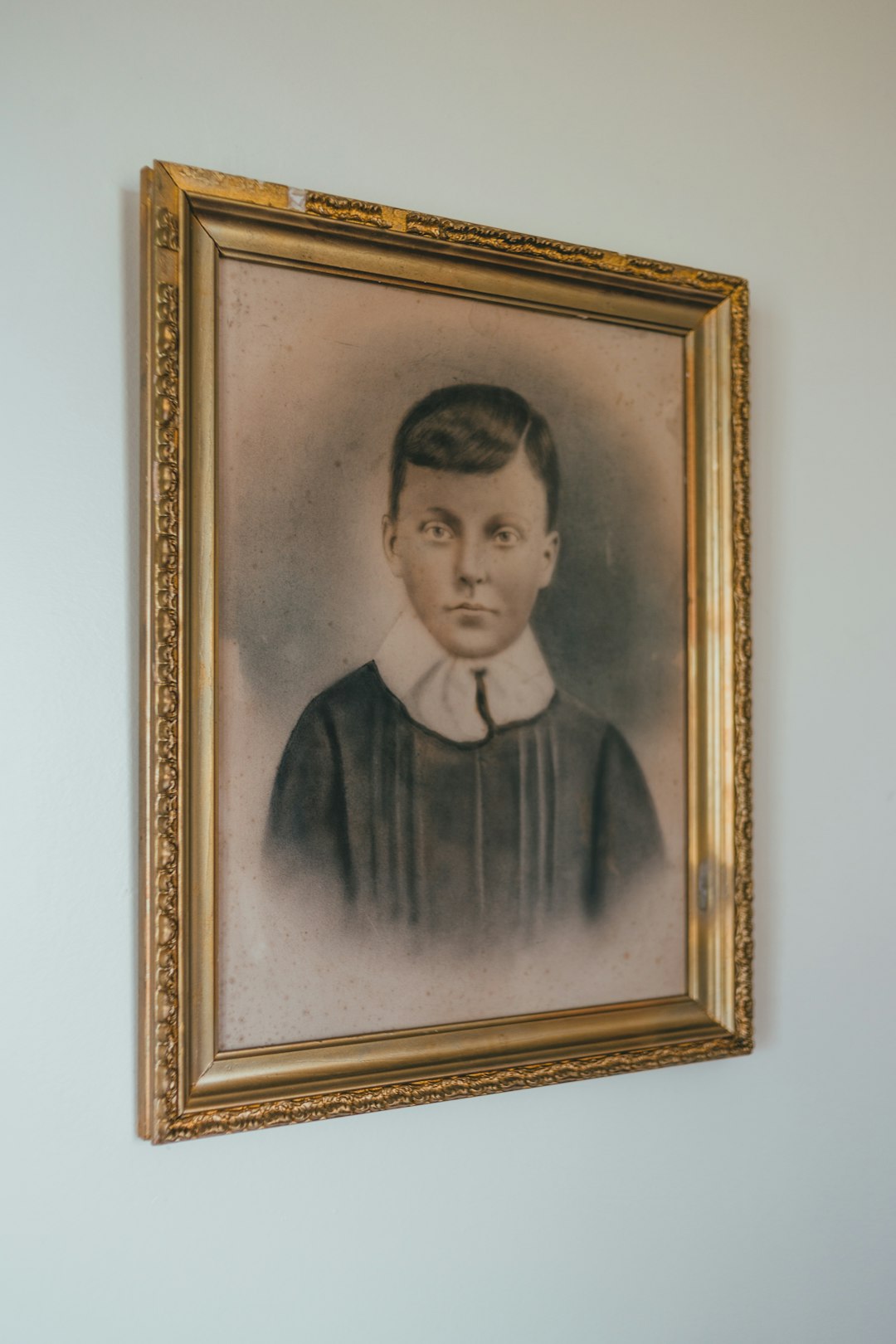
Avoiding Common Enhancement Mistakes
One of the biggest mistakes in image repair is expecting software to perform miracles. Enhancement tools can improve quality, but they cannot always recover unreadable text, completely missed focus, or extreme motion blur. Overusing tools can also make an image look fake.
Common mistakes include:
- Over sharpening: Creates halos, rough skin, and noisy edges.
- Over smoothing: Removes natural texture and makes faces look plastic.
- Upscaling too much: Produces artificial detail and strange patterns.
- Editing a compressed copy: Makes artifacts more noticeable.
- Exporting incorrectly: Reduces quality after repair.
A realistic target is important. A small image may be improved enough for web use, but not for a large wall print. A soft portrait may become clearer, but not as sharp as a properly focused original.
Choosing the Right Export Settings
After enhancement, the final export settings determine whether the improvements are preserved. For photos, high quality JPEG can be suitable when file size matters. For graphics, screenshots, text, and logos, PNG is usually better because it preserves crisp edges. TIFF may be preferred for archival work or professional printing.
Editors should avoid repeatedly opening and resaving JPEG files, because every save can introduce more compression. If additional edits may be needed later, a layered or lossless working file should be saved separately.
- JPEG: Best for standard photos and smaller file sizes.
- PNG: Best for text, logos, screenshots, and transparent backgrounds.
- TIFF: Best for printing, archiving, and high quality editing workflows.
- RAW: Best starting format when available from a camera.
Best Practices for Better Results in the Future
Prevention is easier than recovery. Clearer images begin with good capture habits. A steady camera, proper focus, enough light, and correct resolution settings reduce the need for major repair later. Photographers should shoot at the highest practical resolution and avoid excessive digital zoom, which can reduce detail.
For online work, images should be resized carefully rather than stretched in a layout. Designers and content teams should keep original files organized so that low quality copies are not the only versions available. When images are prepared for print, proper DPI and pixel dimensions should be checked before production.
FAQ
Can a blurry image really be fixed?
Yes, a blurry image can often be improved, especially if the blur is mild. Sharpening, deblurring, denoising, and AI enhancement can make details clearer. However, severe blur cannot always be fully restored.
What is the difference between blurry and pixelated?
A blurry image looks soft and unfocused, while a pixelated image shows visible square blocks or jagged edges. Blur is usually related to focus or motion, while pixelation is usually caused by low resolution or enlargement.
Does AI upscaling add real detail?
AI upscaling predicts and rebuilds detail based on learned patterns. The result can look very convincing, but the added detail is generated rather than perfectly recovered from the original scene.
What is the best format for saving a repaired image?
For photos, high quality JPEG is common. For text, logos, screenshots, or graphics, PNG is usually better. For professional restoration or printing, TIFF is often preferred.
Why does sharpening sometimes make an image look worse?
Sharpening increases contrast along edges. If it is pushed too far, it can create halos, exaggerate noise, and make skin or textures look unnatural.
Can pixelated text be repaired?
Sometimes, but text is difficult to restore accurately. If possible, the text or logo should be recreated as vector artwork. This produces cleaner, scalable results than trying to repair a badly pixelated image.
What is the best order for fixing a damaged image?
A strong workflow usually starts with the best available source file, then applies denoising, deblurring, upscaling, and final sharpening. Exporting in the right format helps preserve the improved quality.