
Switching budgeting apps can feel scary. You worry about losing data. You worry about starting over. And if you’re moving from Simplifi to Monarch Money, you probably have one big question: Can Monarch Money import transactions from Simplifi? The good news? Yes, you can move your data. But there are a few steps you need to follow.
TLDR: Yes, you can import transactions from Simplifi into Monarch Money, but not through a direct automatic sync. You’ll need to export your data from Simplifi as a CSV file and then upload it into Monarch. The process is straightforward if you follow the right steps. Clean your data first for the smoothest experience.
Can Monarch Money Directly Connect to Simplifi?
Short answer: No.
There is no one-click “Import from Simplifi” button inside Monarch Money. The two apps do not have a built-in integration. That means you cannot simply log in and sync everything automatically.
But don’t panic.
Both platforms support CSV file exports and uploads. That is your bridge. With a few clicks, you can move your transactions, categories, and balances over to your new home.
How Data Migration Works (Simple Explanation)
Think of it like moving houses.
- Simplifi is your old house.
- Monarch is your new house.
- The CSV file is the moving truck.
You pack your data into the truck. Then unpack it at the new place.
If things are organized before you pack, unpacking is easy. If not, you’ll deal with a mess.
That’s why preparation matters.
Step 1: Export Transactions from Simplifi
First, log into your Simplifi account.
Now follow these steps:
- Go to your Transactions tab.
- Adjust the date range. Choose “All Dates” if you want everything.
- Look for the Export option.
- Select CSV format.
- Download the file to your computer.

Make sure you save the file somewhere easy to find. Like your desktop.
Tip: If you have multiple accounts in Simplifi, you may need to export them separately.
Step 2: Clean Up Your CSV File
This step is optional. But highly recommended.
Open the CSV file in Excel, Google Sheets, or any spreadsheet program.
Look for common issues:
- Duplicate transactions
- Blank rows
- Strange formatting
- Unnecessary columns
Monarch usually needs these basic columns:
- Date
- Merchant or Description
- Amount
- Category (optional but helpful)
- Account name
If Simplifi uses slightly different column names, that’s okay. You can map them during import.
Why clean first?
Because messy data creates messy budgets. And nobody wants that.
Step 3: Prepare Monarch Money for Import
Before importing, log into Monarch Money.
Make sure your accounts are set up first. For example:
- Checking accounts
- Savings accounts
- Credit cards
- Loans
- Investment accounts
Match them as closely as possible to what you had in Simplifi.
This helps Monarch know where to place each transaction.
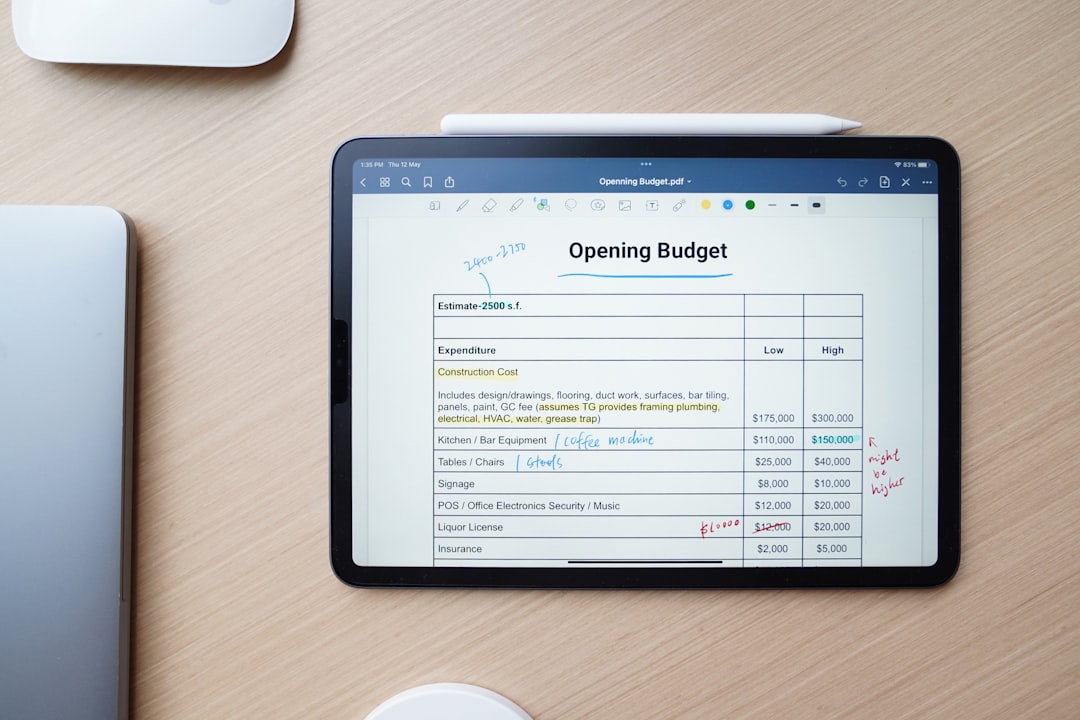
Step 4: Upload the CSV to Monarch
Now comes the fun part.
- Go to the specific account in Monarch.
- Look for the Add Transactions or Upload option.
- Select Upload CSV.
- Choose your cleaned file.
Monarch will then ask you to map columns.
This means:
- Match “Transaction Date” to “Date”
- Match “Payee” to “Merchant”
- Match “Transaction Amount” to “Amount”
It’s mostly point-and-click.
After that, confirm the upload.
Done.
What About Categories?
Categories often cause the biggest headaches.
Simplifi and Monarch have different default category systems.
Here is what might happen:
- Some categories map perfectly.
- Some need manual adjustment.
- Some you may want to rename entirely.
Take your time here.
Clean categories make reports more powerful. They also make budgeting easier.
Common Issues (And Easy Fixes)
Let’s solve problems before they happen.
Problem 1: Duplicate Transactions
This happens if your bank is already connected to Monarch and pulling recent data.
Fix: Import only older historical transactions. Avoid overlapping date ranges.
Problem 2: Wrong Amount Signs
Sometimes expenses appear as positive numbers.
Fix: Adjust formatting in your spreadsheet before uploading.
Problem 3: Dates Look Strange
Different countries use different date formats.
Fix: Standardize to MM/DD/YYYY before importing.
Comparison: Simplifi vs Monarch During Migration
| Feature | Simplifi | Monarch Money |
|---|---|---|
| Direct App to App Migration | No | No |
| CSV Export | Yes | Yes |
| CSV Import | Limited | Yes |
| Custom Category Editing | Moderate | Advanced |
| Manual Transaction Upload | Basic | Flexible |
The key takeaway?
Monarch gives you more flexibility once the data is inside.
Should You Import Everything?
Here’s a question most people forget to ask.
Do you actually need five years of data?
Sometimes a fresh start feels better.
Consider importing:
- The current year
- Last year
- Major financial milestones
Skipping very old data makes your app faster and cleaner.
What About Budgets and Goals?
Transactions migrate easily.
Budgets and goals do not.
You will need to recreate:
- Monthly budget limits
- Sinking funds
- Savings goals
- Debt payoff plans
This sounds annoying.
But it is actually helpful.
It gives you a chance to rethink your financial strategy.

How Long Does the Whole Process Take?
If you are organized:
30 to 60 minutes.
If your accounts are complex:
1 to 2 hours.
Most of that time is spent cleaning and reviewing data.
The actual upload takes just minutes.
Is It Worth Switching?
That depends on your needs.
People often move to Monarch because they want:
- Better investment tracking
- More customization
- Cleaner shared household budgeting
- Long term financial planning tools
If those matter to you, the migration effort is small compared to long-term benefits.
Final Tips for a Smooth Transition
- Back up your Simplifi data before canceling.
- Keep the original CSV file untouched. Make edits on a copy.
- Import one account at a time.
- Review balances after upload.
- Reconcile with bank statements to confirm accuracy.
And most importantly:
Give yourself patience.
No budget system is perfect on day one.
Final Verdict
Yes, Monarch Money can import your Simplifi transactions. It just requires a manual CSV transfer. The process is simple if you follow clear steps. Export. Clean. Upload. Review.
Think of it as a financial reset.
You are not just moving data.
You are building a better money system.
And once everything is in Monarch, you may find the extra flexibility was worth every minute of setup.
Now take a deep breath. Open those apps. And start your move.