
Ever wanted to change the name of your iPhone’s hotspot to something cooler than “iPhone”? Maybe something fun like “WiFi Wizard” or “Net of Thrones”? Good news — it’s super easy. Let’s dive into it together and make your hotspot stand out with some flair!
TL;DR:
You can change your iPhone’s hotspot name by changing the device’s name in the settings. Just go to Settings > General > About > Name and type in a new name. This changes what everyone sees when they try to connect to your hotspot. Make it funny, cool, or personal – totally up to you!
Why Change Your Hotspot Name?
- Personalization: Stand out in a crowd of boring Wi-Fi names.
- Easy Recognition: Make it easier for friends to find your hotspot.
- Security Cue: A custom name tells you whether someone’s spoofing your network.
- Just for Fun: Who doesn’t want a cool Wi-Fi name?
Let’s say goodbye to “John’s iPhone” and hello to “The Internet Express”!
How Hotspot Names Work on iPhone
Your hotspot name is actually the same as your iPhone’s device name. Apple keeps it simple.
This means if you want to change the name of your hotspot, you’ll need to change the name of your phone.
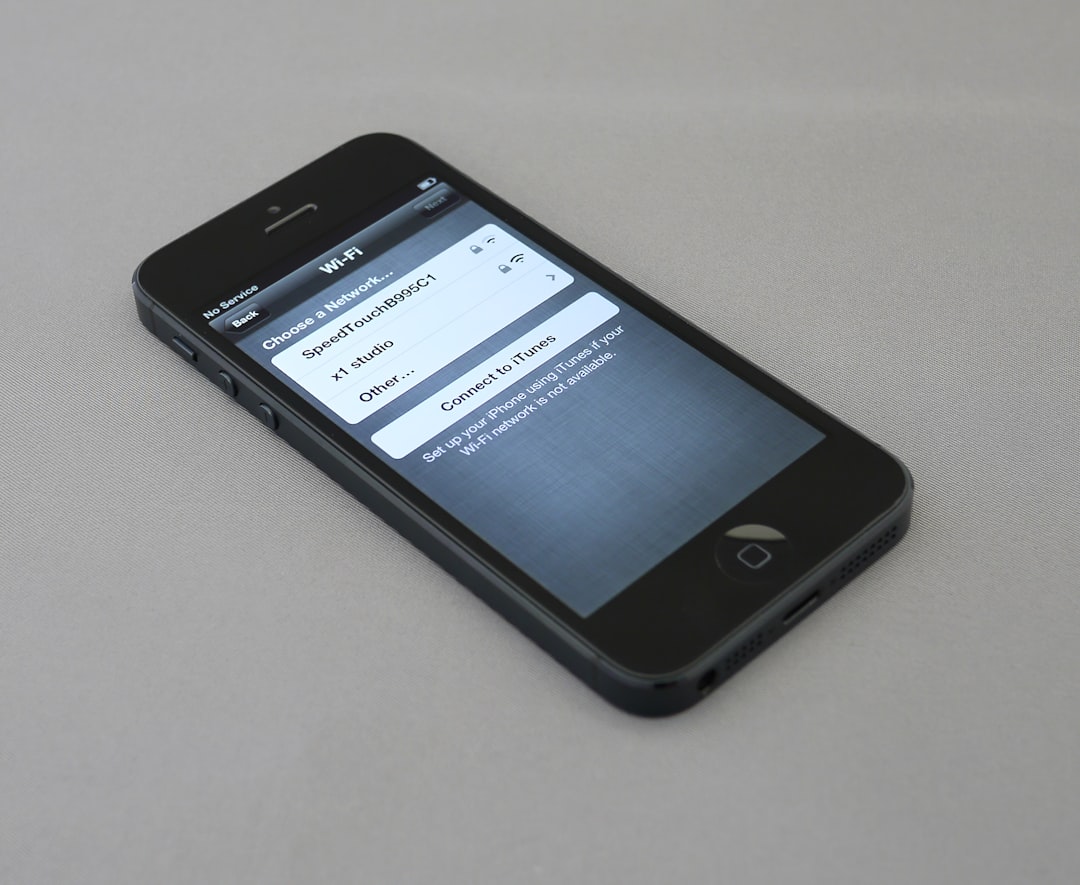
Step-by-Step: How to Change Your Hotspot Name
- Unlock your iPhone and open the Settings app.
- Scroll down and tap on General.
- Next, tap on About at the top of the screen.
- Now, tap the very first option: Name.
- You’ll see your current device name. Tap the name to edit it.
- Type in your new, awesome hotspot name. Be creative! 🌟
- Press Done.
And boom! Your new hotspot name is live!
What’s a Good Name?
Need a little inspiration? Try one of these gems:
- PrettyFlyForAWiFi
- Mom’s Spy Network
- 404 Network Not Found
- Click Here for Virus
- The Promised LAN
Make it your own. It’s your corner of the digital world!
Will It Break Anything?
Nope, not at all. Just keep in mind:
- The new name appears anywhere your device name is used.
- This includes AirDrop, iCloud backups, and Bluetooth connections.
- It might confuse you the first time you see the new name elsewhere. But don’t worry—it’s still your good ol’ iPhone.
Bonus Tip: Want to Double-check the New Name?
Here’s how to make sure your new hotspot name is working:
- Turn on your Personal Hotspot: Settings > Personal Hotspot.
- On another device (like a laptop or tablet), search for available Wi-Fi networks.
- You should see the new name pop up!
How to Revert Back (If You Miss Your Old Name)
Feeling nostalgic? No problem.
- Repeat the steps above to go to Settings > General > About > Name.
- Type your original name back in (or something close).
- Tap Done.
Voilà, old name restored. 😌
Can You Use Emoji in the Name?
Yes, you can! Sort of. 🥳
While some devices may show emojis fine, others may display weird characters. Be wild, but maybe test it out on a friend’s device first!
Fun Fact!
In a busy place like a café or airport, your custom hotspot name can attract smiles—or laughs. It’s not just functional, it’s fashionable. So go ahead and express yourself through Wi-Fi.
A Few Extra Pro Tips
- Keep it short: Some devices cut off long names.
- Don’t include personal info: Avoid your full name or address.
- Make it appropriate: Especially in public places or shared environments.
What Happens If You Still See the Old Name?
Try these quick fixes:
- Restart your iPhone: A quick reboot may refresh the change.
- Disable and re-enable hotspot: Go to Settings > Personal Hotspot and toggle it off/on.
- Forget the network: On other devices, forget the hotspot and reconnect.
Can You Change the Hotspot Name Without Changing the iPhone Name?
Sadly, no. 😢
Apple doesn’t offer a separate setting just for the hotspot name. If you want a unique hotspot name, you have to be okay with changing your device’s name too.
You’re Officially a Wi-Fi Wizard! 🧙
That’s it! Easy, right? You now know how to change your iPhone’s hotspot name and make your pocket-sized network shine. Next time your friends are scrolling through boring network names, yours will definitely turn heads.
Go ahead, give your network some personality. Be bold. Be fun. Be connected!