
Your SteamVR controller won’t power on. Annoying, right? You are ready to jump into your favorite VR game, and your controller feels like a lifeless piece of plastic. Don’t worry. This is a common problem. And most of the time, it is easy to fix. You just need to know where to look and what to try.
TLDR: If your SteamVR controller won’t turn on, first check the battery and charging cable. Then reset the controller and update firmware through SteamVR. If that fails, inspect for hardware damage or contact support. Most issues are simple and can be fixed in under 30 minutes.
Let’s walk through everything step by step. Keep it simple. No tech wizard skills required.
Step 1: Check the Obvious Stuff First
It sounds boring. But start here. Many “dead” controllers are just out of power.
- Plug it in. Use a working USB cable.
- Try a different outlet. Wall sockets can fail.
- Switch cables. Some cables only transfer data, not power.
- Wait at least 10 minutes. A fully drained battery takes time to show signs of life.
If you are using Valve Index controllers, check the small LED light. No light at all? That usually means no battery or no charging connection.
Still nothing? Move on.
Step 2: Inspect the Charging Cable and Port
Cables break more often than we think. They bend. They twist. They wear out.
Here’s what to do:
- Try charging your phone with the same cable.
- If it doesn’t work, the cable is likely dead.
- Look inside the controller’s charging port.
- Check for dust or lint.
You can gently clean the port with:
- A wooden toothpick
- Compressed air
- A soft brush
Do not use metal objects. That can damage the pins.
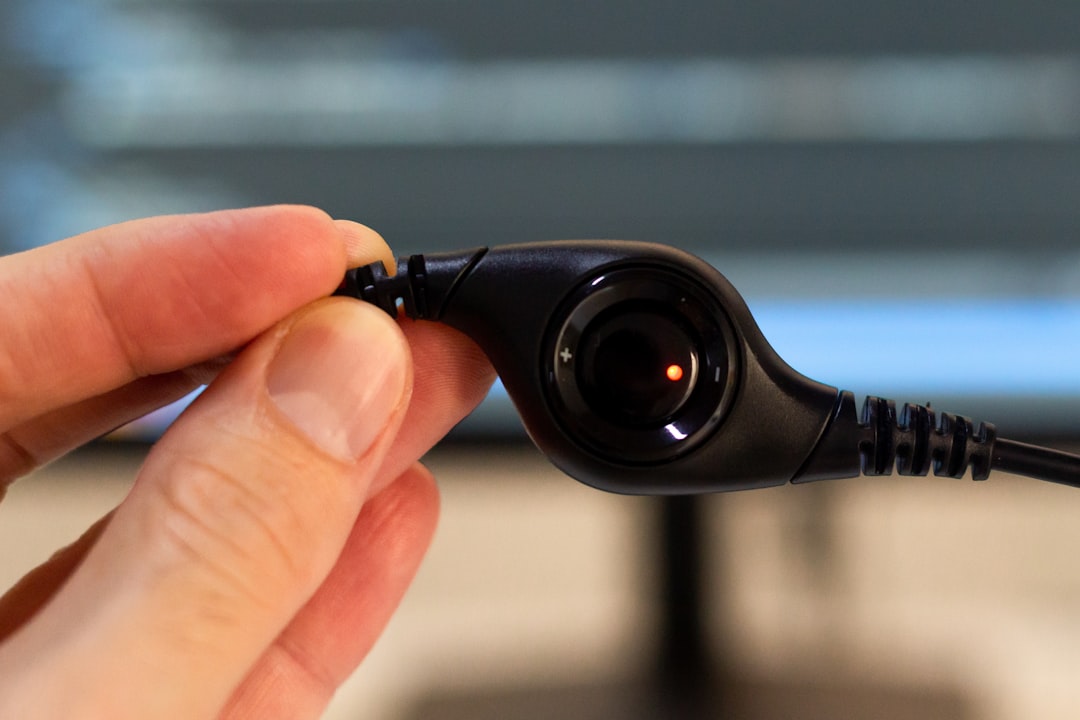
If the port feels loose or wobbly, there may be internal damage. That is a different problem, and we will get to that.
Step 3: Force Restart the Controller
Sometimes the controller is not dead. It is just stuck.
Yes. Like a frozen phone.
Try this:
- Press and hold the System button for 10–15 seconds.
- Release it.
- Press it again normally to power on.
For some models, you can also try:
- Hold System button + Trigger together for 10 seconds.
This forces a reboot. It often works.
Step 4: Check SteamVR for Firmware Issues
If your controller turns on briefly and then shuts off, firmware might be the issue.
Here is what to do:
- Open Steam.
- Launch SteamVR.
- Go to Devices.
- Select Update Firmware if available.
If your controller doesn’t show up at all, plug it into your PC with USB and check again.
Firmware glitches can cause:
- Power problems
- Tracking failure
- Random shutdowns
Keeping firmware updated fixes many hidden bugs.
Image not found in postmetaStep 5: Test the Battery Health
Batteries do not last forever.
If your controller is older than two years, the battery may be weak or dead.
Signs of battery failure:
- Controller only works while plugged in
- Battery drains very fast
- No charging light appears
Unfortunately, most SteamVR controller batteries are not designed for easy replacement.
You have three options:
- Contact Valve Support
- Visit a repair shop
- Replace the controller
If you are skilled with electronics, you can open it. But be careful. This voids warranty.
Step 6: Check for Physical Damage
Be honest. Has it been dropped?
VR controllers hit walls. Desks. Ceilings. Sometimes even TVs.
Look for:
- Cracks in plastic
- Loose buttons
- Rattling sounds inside
- Bent charging port
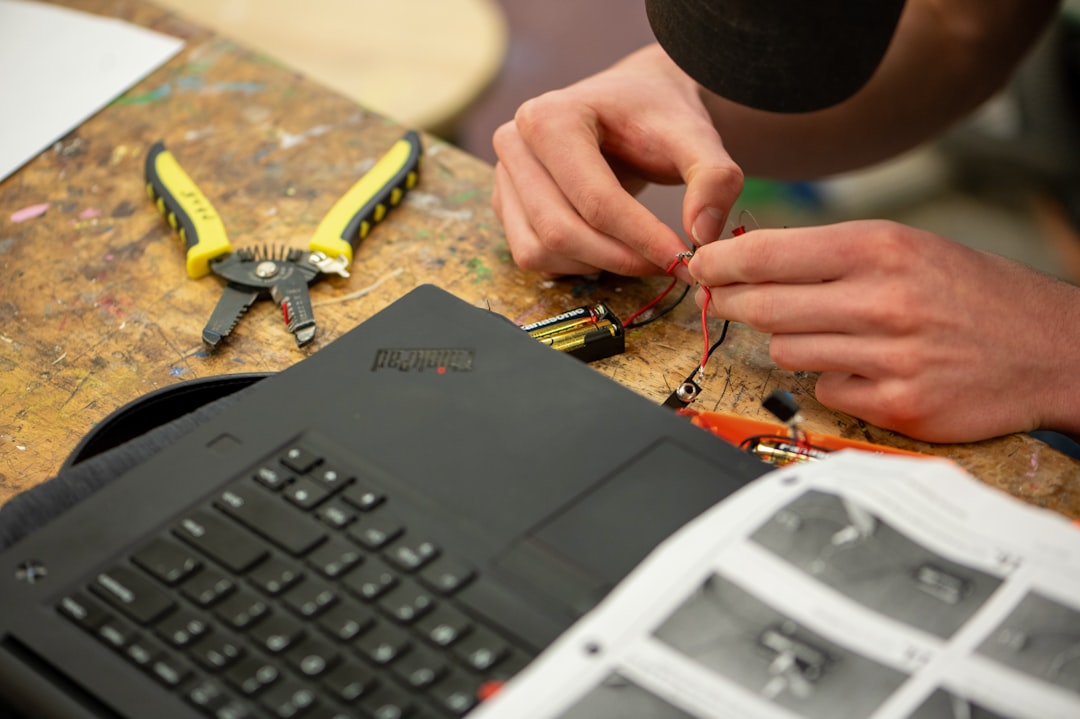
Internal components can disconnect after a hard hit. That can stop power completely.
If you hear something loose inside, it may be a disconnected battery cable.
Step 7: Try a Different USB Port on Your PC
If you are troubleshooting while connected to your PC, test another USB port.
Some USB ports:
- Do not provide enough power
- Have driver issues
- May be partially damaged
Use a rear motherboard USB port if possible. They are usually more stable.
Tools You Might Need
Here is a simple comparison chart of helpful tools for fixing controller power issues:
| Tool | What It Does | Cheap or Expensive | Skill Level Needed |
|---|---|---|---|
| Compressed Air | Removes dust from charging port | Cheap | Beginner |
| Wooden Toothpick | Gently cleans tight spaces | Very Cheap | Beginner |
| Multimeter | Tests battery voltage | Moderate | Intermediate |
| Precision Screwdriver Set | Opens controller safely | Moderate | Intermediate to Advanced |
| Replacement Battery | Fixes dead battery issue | Moderate | Advanced |
If you are not comfortable opening devices, stop at cleaning and software fixes.
Step 8: Perform a Factory Reset
A factory reset can fix deep software issues.
For most SteamVR controllers:
- Turn off the controller.
- Hold System button + Trigger.
- Plug it into your PC while holding.
- Wait for reset process.
Check official support documents for your exact model. Button combos can vary.
This resets firmware settings. It does not harm hardware.
Step 9: Update USB and Bluetooth Drivers
Sometimes the controller is fine. Your PC is the problem.
Try this:
- Update your motherboard USB drivers.
- Update Bluetooth drivers if using wireless mode.
- Restart your PC completely.
A simple reboot can fix weird connection bugs.
When to Contact Valve Support
If you tried everything above and still get:
- No LED light
- No charging signs
- No detection in SteamVR
It may be a hardware failure.
Contact Valve Support if:
- Your device is still under warranty
- You hear internal rattling
- Charging port is broken
- Battery is swollen (very important safety risk)
Do not ignore a swollen battery. Stop charging immediately.
How to Prevent This in the Future
Prevention is easier than repair.
Follow these habits:
- Do not let battery drop to 0% often.
- Store controllers in a cool, dry place.
- Use wrist straps while playing.
- Clean charging ports monthly.
- Avoid cheap cables.
Treat your controllers like small gaming computers. Because they are.
Final Thoughts
A SteamVR controller that won’t power on feels scary. But most of the time, the fix is simple.
Start with power. Then cables. Then software. Only then worry about hardware.
Move step by step. Stay calm. Do not take it apart immediately.
VR gear is tough. It survives wild swings and fast movements. But like all tech, it sometimes needs a little care.
With the tips above, you should be back inside your virtual world very soon.
And next time your controller refuses to wake up, you will know exactly what to do.
Game on.