
Disney Plus Error Code 83 is one of the most common issues subscribers encounter when trying to stream movies, shows, or live content. It usually appears with a message suggesting that the device is not compatible, the connection is unstable, or the service cannot verify playback. Although the error can be frustrating, it is often fixable within a few minutes by checking the device, internet connection, app version, and account status.
TLDR: Disney Plus Error Code 83 usually points to a device compatibility, connection, app, or account verification problem. The fastest fixes are restarting the device, updating the Disney Plus app, checking the internet connection, clearing cache, and confirming that the device is supported. If the issue continues, switching devices, disabling VPN services, or contacting Disney Plus support may be necessary.
What Is Disney Plus Error Code 83?
Disney Plus Error Code 83 is a playback and access error that prevents content from loading properly. It can appear on smart TVs, phones, tablets, streaming sticks, game consoles, and web browsers. In many cases, the platform blocks playback because it cannot confirm that the device, app, browser, or network environment meets its requirements.
The error does not always mean that the device is permanently unsupported. Sometimes it appears because of a temporary glitch, outdated software, weak Wi-Fi signal, corrupted app data, or a problem with Disney Plus servers. Because several causes can trigger the same code, the best approach is to follow a quick troubleshooting checklist.
Common Causes of Error Code 83
Before attempting fixes, it helps to understand what may be causing the problem. Disney Plus Error Code 83 is commonly linked to the following issues:
- Unsupported device: The device may not meet Disney Plus compatibility requirements.
- Outdated app: An older version of the Disney Plus app may fail to connect properly.
- Weak internet connection: Slow or unstable Wi-Fi can interrupt playback verification.
- Browser problems: An unsupported or outdated browser may cause streaming errors.
- VPN or proxy use: Disney Plus may block traffic that appears to come from masked locations.
- Corrupted cache: Stored app or browser data can interfere with normal playback.
- Account or server issue: The service may be experiencing outages or login verification problems.
1. Restart the Device First
The quickest fix is often the simplest one. A full restart can clear temporary memory issues, refresh system processes, and restore the connection between the device and Disney Plus. The viewer should completely power off the device rather than only closing the app.
For smart TVs and streaming devices, it is best to unplug the device from power for about 30 to 60 seconds, then plug it back in. For phones, tablets, and computers, a normal restart is usually enough. After restarting, the user can open Disney Plus again and try playing the same title.
2. Check Whether Disney Plus Is Down
If the error appears suddenly across multiple devices, the problem may not be on the viewer’s side. Disney Plus occasionally experiences regional outages, login issues, or streaming disruptions. In that case, Error Code 83 may appear even when the device and internet connection are working correctly.
The user can check the official Disney Plus help channels, social media updates, or outage tracking websites. If many subscribers are reporting the same issue at the same time, waiting may be the only practical solution. Once the service is restored, playback should return automatically.
3. Confirm That the Device Is Supported
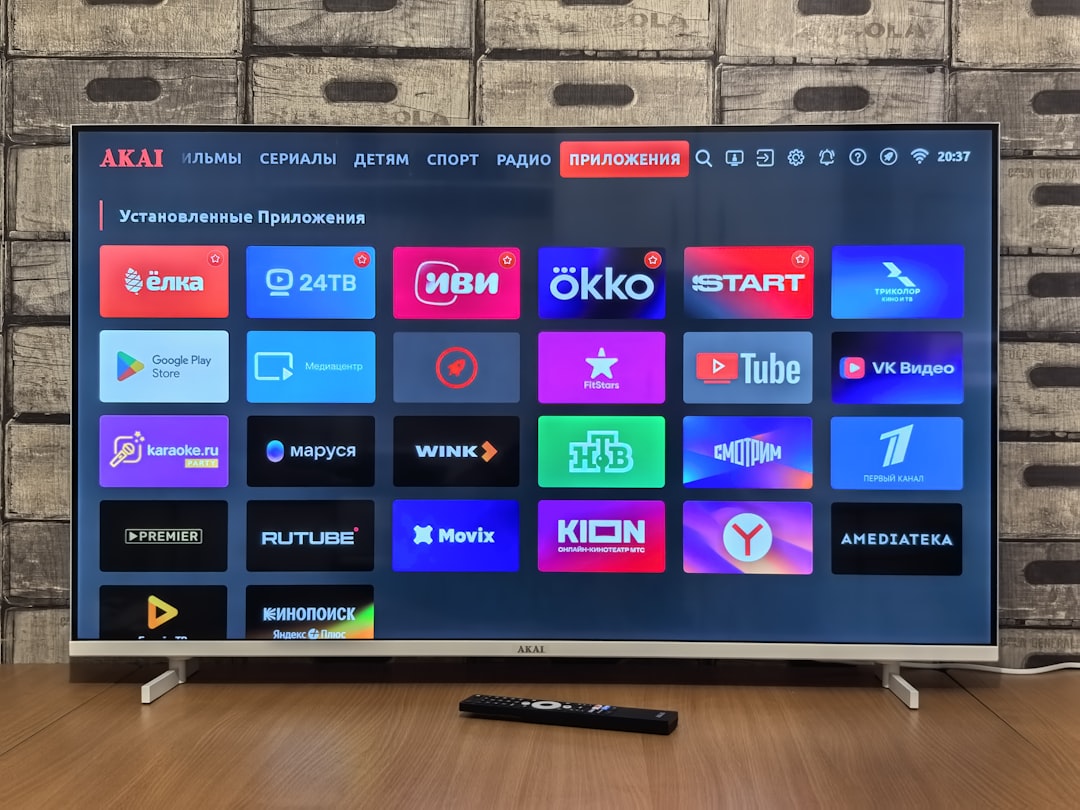
Disney Plus does not work on every device, browser, or older operating system. Error Code 83 may appear when the service detects a device that is not officially supported. This is especially common on older smart TVs, outdated Android boxes, old tablets, and unofficial streaming devices.
The viewer should check whether the device is listed as compatible with Disney Plus. Supported devices typically include modern iOS and Android phones, updated web browsers, Apple TV, Roku, Amazon Fire TV, Chromecast, PlayStation, Xbox, and many newer smart TVs. If the device is very old or running modified software, switching to a supported device may solve the problem immediately.
4. Update the Disney Plus App
An outdated app is another frequent cause of Error Code 83. Streaming platforms regularly update their apps to improve security, playback compatibility, and device verification. If the installed version is old, it may not communicate correctly with Disney Plus servers.
The user should open the device’s app store and check for Disney Plus updates. On smart TVs and streaming sticks, app updates may be found under settings, apps, or system updates. After installing the latest version, the device should be restarted before opening Disney Plus again.
If updating does not help, uninstalling and reinstalling the Disney Plus app can be even more effective. This removes corrupted files and replaces them with a clean installation.
5. Test the Internet Connection
Disney Plus requires a stable internet connection for login verification and streaming. Even if other websites work, the connection may still be too weak or inconsistent for video playback. Error Code 83 can appear when packets drop, latency spikes, or Wi-Fi signal strength is poor.
The viewer should run a speed test on the same device if possible. Disney Plus generally recommends at least 5 Mbps for HD streaming and 25 Mbps for 4K UHD streaming. However, speed is not the only factor. Stability matters just as much.
- Move the device closer to the Wi-Fi router.
- Restart the modem and router.
- Disconnect unused devices from the network.
- Use an Ethernet cable if the device supports it.
- Try a different Wi-Fi network or mobile hotspot for testing.

6. Clear App Cache and Data
Stored cache helps apps load faster, but corrupted cache files can cause Disney Plus to malfunction. Clearing the cache removes temporary data without necessarily deleting the account. On Android phones, Android TVs, and Fire TV devices, the user can usually clear cache from the app settings menu.
On many devices, the path is similar to Settings > Apps > Disney Plus > Storage > Clear Cache. If the error continues, selecting Clear Data may help, though the account may need to be signed in again afterward.
For iPhone and iPad users, there is usually no direct cache clearing option. Instead, deleting and reinstalling the app performs a similar function. For browsers, clearing cookies and cached site data can fix playback errors connected to stored sessions.
7. Disable VPN, Proxy, or Private DNS Services
Disney Plus is region restricted, so it actively checks where traffic is coming from. VPNs, proxy servers, private DNS tools, and some security apps can make the connection look suspicious or unsupported. When Disney Plus cannot verify the viewer’s location or device properly, Error Code 83 may appear.
The user should temporarily turn off any VPN, proxy, ad blocking DNS, or traffic filtering app. After disabling those services, the device should be restarted and Disney Plus should be opened again. If the error disappears, the VPN or proxy was likely the cause.
Some corporate, school, hotel, or public networks also route traffic through restricted systems. In those cases, switching to a home network or mobile hotspot may be necessary.
8. Try a Different Browser
When Error Code 83 appears on a computer, the browser may be responsible. Disney Plus works best on updated versions of major browsers such as Chrome, Edge, Firefox, and Safari. Older browsers, unsupported extensions, strict privacy settings, or corrupted cookies can interfere with playback.
The viewer should first update the browser, then try opening Disney Plus in a private or incognito window. If that works, an extension or cookie issue is likely. Disabling extensions, especially ad blockers and privacy tools, may resolve the problem.
If the error continues, trying a different browser is a quick test. For example, if the problem appears in Chrome, the user can test playback in Edge or Firefox. A successful playback in another browser confirms that the original browser needs to be reset, updated, or cleaned.
9. Log Out and Log Back In
Account authentication problems can also trigger Error Code 83. Disney Plus may fail to validate the active session, especially after password changes, billing updates, or app crashes. Signing out refreshes the session and forces the app to reconnect to the account.
The user should sign out of Disney Plus, close the app completely, restart the device, and sign in again. If available, signing out of all devices from the account settings page may also help. This is useful when the account is active on many devices or when old sessions are causing conflicts.
10. Update the Device Software
Even if the Disney Plus app is current, the operating system may be outdated. Streaming apps depend on system-level security tools, digital rights management, and media playback components. If those components are old, Disney Plus may block playback to protect licensed content.
The user should check for system updates on the device. This applies to smart TVs, streaming sticks, game consoles, smartphones, tablets, and computers. After installing updates, the device should restart automatically or be restarted manually. Then Disney Plus can be tested again.
11. Check Date and Time Settings
Incorrect date and time settings can interfere with secure connections. Disney Plus uses encrypted communication, and if the device clock is wrong, authentication may fail. This can result in access errors, including Error Code 83.
The device should be set to update date and time automatically. On phones, tablets, computers, and streaming devices, this option is usually found in system settings. Once automatic time is enabled, the user should restart the device and try streaming again.
12. Reinstall Disney Plus
If the error persists after cache clearing and updates, reinstalling the app is a strong next step. A reinstall removes damaged app files, resets permissions, and installs the newest available version. This is especially useful when the app crashes, freezes, or shows the error only on one device.
The user should uninstall Disney Plus, restart the device, then reinstall the app from the official app store. Downloading the app from unofficial sources should be avoided because modified or outdated versions may not pass Disney Plus security checks.
13. Try Another Device
Testing another device is one of the fastest ways to identify whether the problem is device-specific or account-wide. If Disney Plus works on a phone but not on a smart TV, the smart TV app, software, or compatibility is likely the issue. If the error appears on every device, the cause may be the account, network, VPN, or Disney Plus servers.
This test helps narrow down the troubleshooting process. It also gives the viewer a temporary way to continue watching while the primary device is being fixed.
14. Contact Disney Plus Support
If none of the fixes work, the issue may require help from Disney Plus support. The viewer should provide useful details to speed up the process, including the device model, operating system version, app version, browser name, internet provider, and the exact time the error appeared.
Support may check account status, regional availability, device compatibility, and known service issues. If the device is unsupported, support can confirm whether there is a workaround or whether a different streaming device is required.
Quick Fix Checklist
For the fastest troubleshooting, the viewer can follow this order:
- Restart the device.
- Check whether Disney Plus is down.
- Update the Disney Plus app.
- Restart the modem and router.
- Disable VPN or proxy services.
- Clear cache or reinstall the app.
- Update the device software.
- Try a different browser or device.
- Contact Disney Plus support if the error remains.
Final Thoughts
Disney Plus Error Code 83 can look serious, but it is usually caused by a fixable issue such as outdated software, poor connectivity, unsupported devices, or blocked network traffic. The fastest solution is to restart everything, update the app, check the connection, and disable VPN services. If the problem only appears on one device, clearing cache, reinstalling the app, or updating the device software will often resolve it.
When the error appears across every device, the viewer should check for a Disney Plus outage or account-related problem. By moving through the troubleshooting steps in order, most users can restore streaming quickly without needing advanced technical help.
FAQ
What does Disney Plus Error Code 83 mean?
Disney Plus Error Code 83 usually means the service cannot verify the device, app, browser, internet connection, or account session. It is commonly related to compatibility, connection, or authentication problems.
How can Error Code 83 be fixed quickly?
The fastest fixes are restarting the device, updating the Disney Plus app, checking the internet connection, disabling VPN services, and clearing the app cache. If those steps fail, reinstalling the app is often effective.
Can a VPN cause Disney Plus Error Code 83?
Yes. Disney Plus may block VPN or proxy traffic because it can interfere with location verification. Turning off the VPN and restarting the app can often fix the error.
Why does Disney Plus work on one device but not another?
This usually means the issue is specific to the device that fails. The device may have an outdated app, old system software, corrupted cache, or compatibility limitations.
Does Error Code 83 mean the account is banned?
No. Error Code 83 does not usually mean an account is banned. It more often points to a technical issue involving the device, network, app, or browser.
Should Disney Plus be reinstalled to fix Error Code 83?
Reinstalling Disney Plus is a good step if restarting, updating, and clearing cache do not work. It creates a clean installation and can remove corrupted app files.
Can slow internet cause Error Code 83?
Yes. A weak or unstable connection can prevent Disney Plus from verifying playback properly. Restarting the router, moving closer to Wi-Fi, or using Ethernet may help.
When should Disney Plus support be contacted?
Support should be contacted if the error remains after all basic troubleshooting steps, appears on every device, or occurs even when the device and network are known to be supported and stable.