
If you’ve ever plugged in your MacBook only to notice that the charger light is blinking orange instead of showing a steady glow, you’re not alone. That small LED indicator on a MagSafe connector can feel surprisingly alarming when it starts flashing unexpectedly. Is your battery failing? Is the charger broken? Or is your MacBook trying to tell you something important?
TLDR: A blinking orange light on a MacBook charger usually signals a charging issue. Common causes include a faulty charger, a battery problem, debris in the charging port, or a logic board issue. In many cases, simple fixes like cleaning the port, resetting the SMC, or testing with another charger can solve the problem. If the blinking persists, professional repair may be required.
Understanding the MacBook Charger Light
On MacBooks that use the MagSafe charging system, the small LED light serves as a quick status indicator. Typically, it behaves in the following ways:
- Solid amber (orange): Your MacBook is charging.
- Solid green: Your MacBook battery is fully charged.
- No light: No power is detected or the charger is not functioning properly.
- Blinking amber: A problem has been detected.
A blinking orange light is not normal behavior during standard charging. It usually indicates that the charger and battery are attempting to communicate but are running into a problem.
Common Reasons Your MacBook Charger Is Blinking Orange
1. Battery Issues
One of the most frequent causes is a battery malfunction. MacBook batteries contain internal controllers that communicate with the system to regulate charging. If something goes wrong with this communication process, the charger may respond with a blinking indicator.
Signs your battery may be the culprit include:
- The MacBook shuts down unexpectedly.
- The battery percentage jumps erratically.
- The computer only works when plugged in.
- You see a “Service Battery” warning in macOS.
In some cases, an aging battery nearing the end of its lifespan may trigger charging irregularities. MacBook batteries typically last between 3–5 years or around 1000 charge cycles, depending on the model.
2. Faulty Charger or Power Adapter
Sometimes the simplest answer is the correct one: the charger itself may be damaged. Over time, cables fray, internal wiring degrades, and adapters lose efficiency.
Check for:
- Visible cable fraying or exposed wires.
- Burn marks or discoloration.
- A loose MagSafe connector.
- Overheating adapter brick.
If possible, test your MacBook with another compatible charger. If the blinking stops, your original charger is likely defective.
3. Dirty or Blocked MagSafe Port
It may sound minor, but debris inside the charging port is a surprisingly common issue. Dust, metal fragments, or pocket lint can interfere with the magnetic connection and disrupt charging.
Carefully inspect both:
- The MagSafe connector pins.
- The charging port on the MacBook.
Use a flashlight to look for buildup and gently clean it with a dry, soft brush or a wooden toothpick. Avoid using metal objects that could cause short circuits.
4. SMC (System Management Controller) Problems
The System Management Controller (SMC) controls power-related functions on Intel-based MacBooks, including battery charging and LED indicators. If it becomes confused or corrupted, you may see unusual behaviors like a blinking charger light.
Resetting the SMC can often resolve the issue without any hardware repair.

5. Logic Board Issues
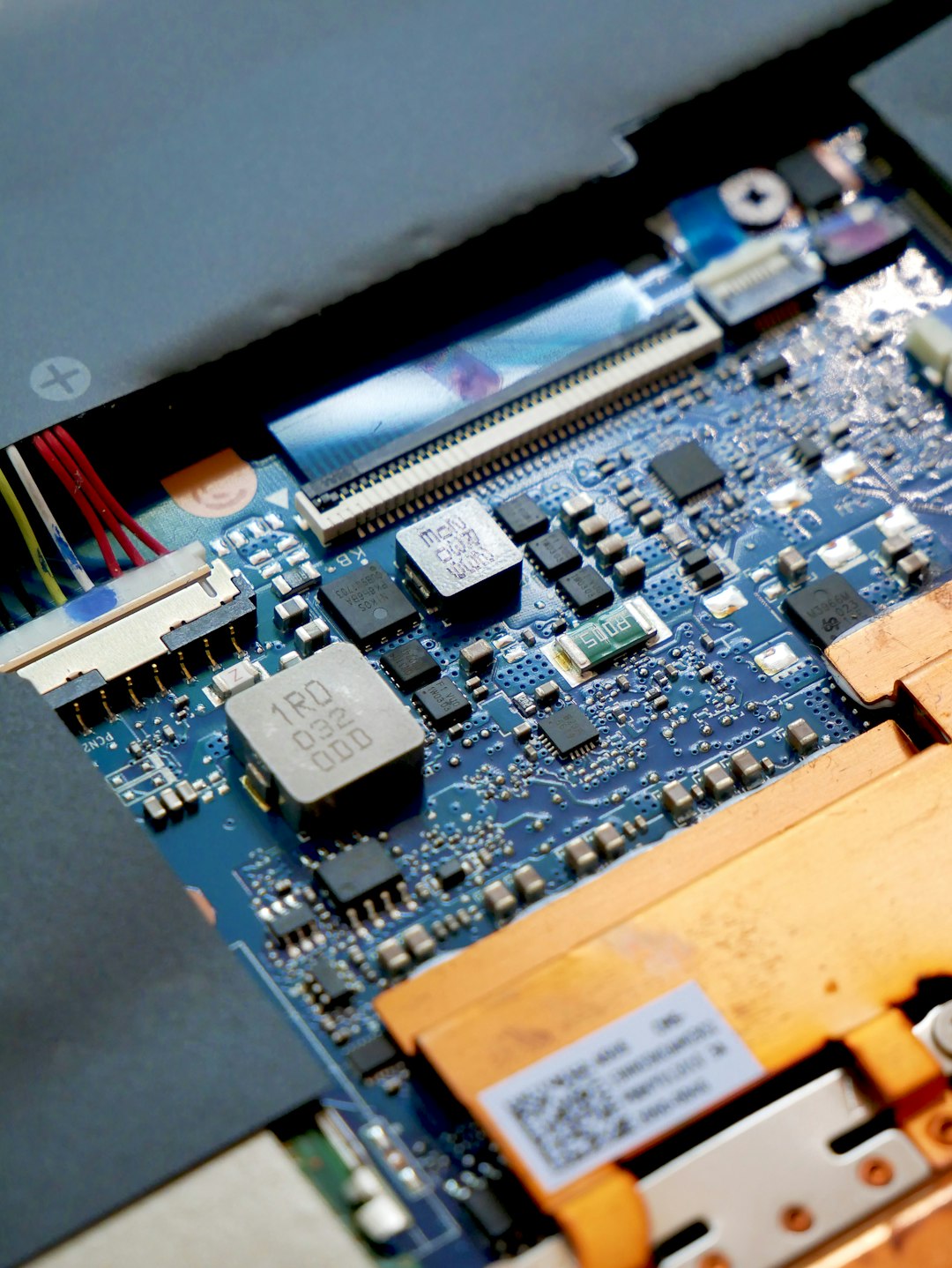
In more serious cases, the problem may stem from the logic board (motherboard). Charging circuits on the board manage power flow between the battery and adapter. If one of these components fails, the charger may blink to indicate communication failure.
Logic board repairs typically require professional diagnosis and can be more expensive than battery or charger replacement.
How to Fix a Blinking Orange MacBook Charger
Before assuming the worst, try these troubleshooting steps in order:
Step 1: Disconnect and Reconnect
Unplug the charger from both your MacBook and the wall outlet. Wait about 30 seconds. Reconnect everything securely and observe the LED behavior.
Step 2: Check the Power Outlet
Plug another device into the same outlet to ensure it’s working. If you’re using a power strip or extension cord, try plugging directly into the wall.
Step 3: Clean the Charging Port
As mentioned earlier, remove any visible debris from both the MagSafe connector and the charging port.
Step 4: Reset the SMC
For Intel-based MacBooks with a non-removable battery:
- Shut down your MacBook.
- Press and hold Shift + Control + Option (left side).
- While holding those keys, press and hold the power button.
- Hold for 10 seconds.
- Release all keys and turn your MacBook back on.
For Apple silicon (M1, M2, etc.) models, simply shutting down and restarting the system serves a similar purpose, as they handle power management differently.
Step 5: Try Another Charger
If you have access to a compatible MagSafe adapter, test it. This can quickly confirm whether the issue lies with the charger or the laptop.
Step 6: Check Battery Health
On macOS:
- Click the Apple menu.
- Go to System Settings (or System Preferences).
- Select Battery.
- Check Battery Health.
If the system indicates Service Recommended, the battery may need replacement.
When Should You Seek Professional Help?
If you’ve:
- Reset the SMC
- Tried a different charger
- Cleaned the port
- Checked battery health
…and the charger still blinks orange, it may be time to consult an Apple Store or certified repair technician.
Warning signs that require immediate attention include:
- Swelling battery (trackpad raised or case bulging).
- Burning smell or excessive heat.
- MacBook not powering on at all.
Battery swelling in particular can become dangerous and should be handled carefully by professionals.
Does This Issue Affect USB-C MacBooks?
Modern MacBooks with USB-C or MagSafe 3 chargers don’t typically have blinking LED issues in the same way older MagSafe models do. However, similar charging problems may show up as:
- Battery not charging messages.
- Intermittent charging.
- Charging port not recognizing cable.
In those cases, troubleshooting involves checking USB-C cables, power delivery wattage compatibility, and system firmware updates rather than relying on LED signals.
How to Prevent Charging Problems in the Future
While some issues are unavoidable, you can reduce the risk of blinking orange lights by following good charging habits:
- Avoid bending cables sharply.
- Store chargers loosely coiled.
- Keep charging ports clean.
- Use official or certified power adapters.
- Update macOS regularly.
Additionally, try not to leave your MacBook constantly plugged in at 100% for extended periods without cycling the battery. Modern macOS versions include Optimized Battery Charging to help manage battery aging.
Is It Safe to Keep Using It While It’s Blinking?
If your MacBook still functions normally and the battery charges intermittently, it’s usually safe for short-term use. However, prolonged use without resolving the issue can:
- Shorten battery lifespan further.
- Potentially damage power management circuits.
- Leave you stranded without power unexpectedly.
It’s best to treat a blinking orange charger as an early warning system—not something to ignore indefinitely.
Final Thoughts
A blinking orange light on your MacBook charger may look small, but it carries an important message. In most cases, the issue is manageable: a dying battery, a dirty port, or a worn-out charger. Fortunately, many of these problems can be diagnosed at home with simple troubleshooting steps.
Still, if the blinking persists despite your efforts, don’t hesitate to seek professional help. Addressing charging issues early can extend the life of your MacBook and save you from more expensive repairs later. That tiny LED, after all, is doing exactly what it was designed to do—alerting you before a minor inconvenience becomes a major headache.