
Your iPhone is plugged in, the cable is connected, and yet the battery icon refuses to move. Few phone problems are as frustrating as an iPhone that will not charge, especially when you need it for work, travel, maps, messages, or emergencies. The good news is that many charging issues are caused by simple things: a dirty port, a failing cable, software confusion, or power settings you may not have noticed.
TLDR: If your iPhone is not charging when plugged in, start by checking the cable, wall adapter, outlet, and charging port. Clean the port carefully, restart the phone, and try a different charger before assuming the battery is bad. If the iPhone still will not charge, check for software updates, battery health warnings, water damage, or hardware failure. When nothing works, it may be time to contact Apple Support or visit a repair technician.
First, Confirm What “Not Charging” Really Means
Before diving into fixes, take a moment to identify what is actually happening. An iPhone charging problem can show up in several ways, and each one points to a slightly different cause.
- No charging symbol appears: The iPhone does not detect the charger at all.
- Charging symbol appears briefly, then disappears: This may suggest a loose connection, damaged cable, or dirty charging port.
- Battery percentage does not increase: The phone may be drawing power too slowly, overheating, or running demanding apps.
- “Accessory Not Supported” message appears: The cable or adapter may be faulty, uncertified, dirty, or incompatible.
- Phone only charges at a certain angle: This usually means a bad cable, worn connector, or debris inside the port.
Once you know the symptom, it becomes easier to target the right fix instead of guessing.
Step 1: Check the Power Source
Start with the simplest possibility: the issue may not be your iPhone at all. Plug something else into the same wall outlet, such as a lamp or another charger, to verify that the outlet works. If you are charging through a laptop, car USB port, power strip, keyboard, or USB hub, try a wall adapter instead.
Some USB ports provide very little power, especially older computer ports or cheap power strips with built-in USB sockets. Your iPhone may show a charging icon but gain battery very slowly, or not at all if the screen is on and apps are running.
Best test: use a known working wall outlet and a reliable Apple or certified USB power adapter. Leave the phone plugged in for at least 10 to 15 minutes before deciding it is not charging.
Step 2: Inspect the Charging Cable
Charging cables take a lot of abuse. They get bent, twisted, stepped on, pulled from the cord instead of the connector, and stuffed into bags. Even if the outside looks fine, internal wires may be damaged.
Look closely at both ends of the cable. Check for:
- Fraying near the connector
- Discoloration, burn marks, or melted plastic
- Bent or loose metal tips
- Exposed wires
- Charging that works only when the cable is held at an angle
If possible, test your iPhone with another charging cable that you know works. Also test your cable with another iPhone if available. This quick swap can tell you whether the cable is the problem.
Tip: If you use third-party accessories, choose cables labeled as MFi certified for Lightning iPhones or high-quality USB C cables for newer models. Cheap cables are a common reason an iPhone stops charging reliably.
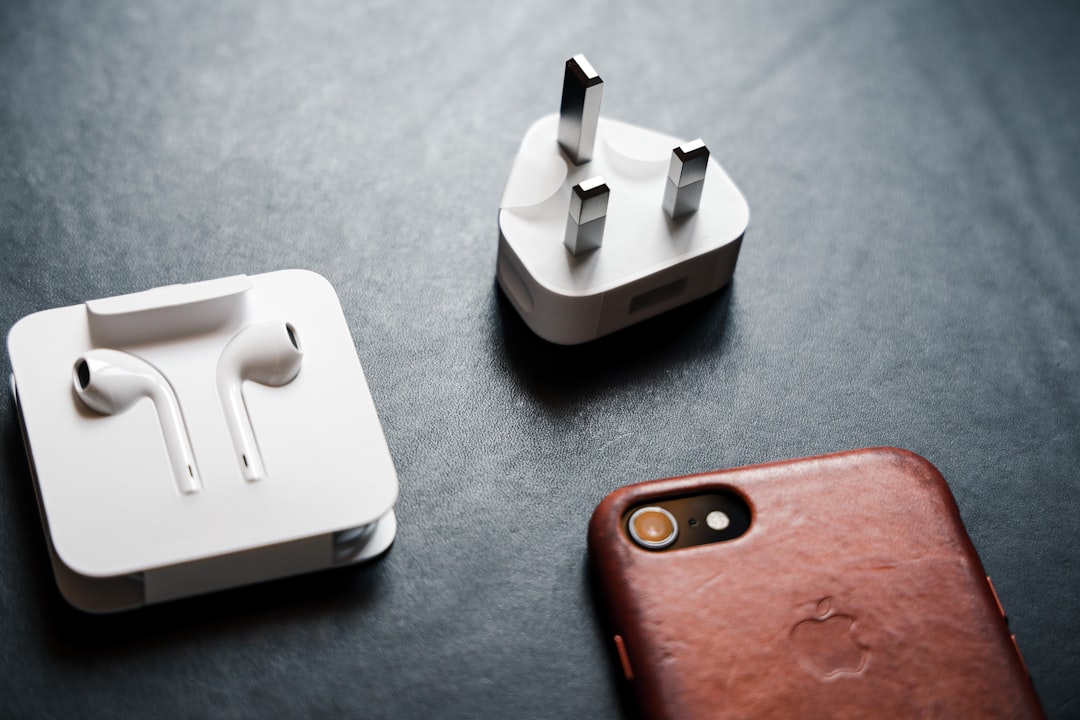
Step 3: Examine the Wall Adapter
The charging brick can fail too. A damaged adapter may deliver no power, inconsistent power, or power that is too weak to charge your iPhone properly. This is especially common with low-quality adapters or chargers that have overheated in the past.
Try a different wall adapter with the same cable. If your iPhone begins charging normally, the original adapter is likely the culprit. Also check that the adapter fits snugly in the outlet. A loose outlet or loose plug can interrupt charging without you noticing.
If your iPhone supports fast charging, make sure you are using a power adapter with enough wattage. However, even a lower-wattage adapter should still charge the phone slowly. If nothing happens at all, the problem is probably not just charger speed.
Step 4: Clean the Charging Port Carefully
A dirty charging port is one of the most overlooked causes of iPhone charging problems. Lint, dust, pocket debris, and tiny particles can build up inside the port over time. When enough debris collects, the cable cannot seat properly, even if it looks plugged in.
Follow these steps carefully:
- Turn off your iPhone.
- Use a flashlight to look inside the charging port.
- If you see lint or debris, gently remove it with a wooden or plastic toothpick.
- Do not use metal tools, pins, or paper clips, as they can damage the contacts.
- Avoid spraying liquid cleaners into the port.
- After cleaning, plug the cable in again and check whether it fits more firmly.
When the port is clean, the connector should slide in evenly and feel secure. If the cable still feels loose with multiple chargers, the port itself may be worn or damaged.
Important: Be gentle. The small pins inside the port are delicate. If you are uncomfortable cleaning it yourself, a phone repair shop or Apple technician can inspect it safely.

Step 5: Restart Your iPhone
Sometimes the hardware is fine, but iOS fails to report charging correctly. A simple restart can clear temporary glitches that prevent the charging icon from appearing or the battery percentage from updating.
For most newer iPhones, press and hold the side button and either volume button until the power slider appears. Slide to power off, wait about 30 seconds, then turn the iPhone back on. For older models with a Home button, hold the side or top button until the slider appears.
After restarting, plug the iPhone in and wait a few minutes. If the charging icon appears, the issue may have been a temporary software hiccup.
Step 6: Force Restart if the Screen Is Frozen or Black
If your iPhone is completely unresponsive, it may look like it is not charging when it is actually frozen. A force restart can help revive it without erasing your data.
For iPhone 8 and later, including iPhone SE 2nd generation and newer:
- Press and quickly release the Volume Up button.
- Press and quickly release the Volume Down button.
- Press and hold the Side button until the Apple logo appears.
For older iPhones, the button combination may differ. Once the Apple logo appears, let the phone reboot, then connect it to power again.
Step 7: Let a Completely Dead Battery Charge Longer
If the battery is fully drained, your iPhone may not turn on immediately after being plugged in. In some cases, it needs several minutes before it has enough power to display the charging screen.
Plug it into a reliable wall charger and leave it alone for at least 30 minutes. Do not keep pressing buttons every few seconds. If the battery icon eventually appears, continue charging until the phone reaches a usable level.
If nothing appears after 30 to 60 minutes with multiple chargers, move on to the next steps.
Step 8: Check for Overheating or Extreme Cold
iPhones are designed to protect the battery from unsafe temperatures. If your phone is too hot or too cold, charging may slow down or stop completely. You may see a temperature warning, or the phone may simply refuse to charge past a certain point.
If your iPhone feels hot, unplug it, remove the case, and place it in a cool, shaded area. Do not put it in a refrigerator or freezer, as sudden temperature changes can cause condensation. If the phone is very cold, let it warm naturally to room temperature before charging.
Heat can come from direct sunlight, gaming, video recording, wireless charging, or using GPS in a car. Once the iPhone returns to a normal temperature, charging should resume.
Step 9: Look for Liquid Detection Alerts
Many iPhones can detect moisture in the charging port. If liquid is present, you may see an alert such as “Liquid Detected in Lightning Connector” or a similar USB C warning. Charging while the port is wet can damage the device, so take this warning seriously.
If you see a liquid alert:
- Unplug the charger immediately.
- Tap the phone gently with the port facing down to remove excess liquid.
- Leave the iPhone in a dry, ventilated area.
- Wait several hours before trying to charge again.
- Avoid using rice, heaters, hair dryers, or compressed air.
If you need to charge urgently and your model supports wireless charging, that may be a safer temporary option while the port dries.
Step 10: Try Wireless Charging
If you have an iPhone that supports wireless charging, place it on a compatible Qi or MagSafe charger. If wireless charging works but wired charging does not, the problem is likely related to the cable, adapter, charging port, or port hardware.
Make sure the phone is centered on the wireless charger. Remove thick cases, metal plates, magnetic accessories, or wallet attachments that may interfere with charging.
Wireless charging is also useful as a diagnostic tool. It can help you keep the phone powered while you arrange a repair for a damaged charging port.

Step 11: Update iOS
Software bugs can sometimes affect charging behavior, battery reporting, or accessory compatibility. To check for updates, go to Settings > General > Software Update. If an update is available, install it when your phone has enough battery or while it is connected to a working charger.
Also check whether the charging issue started after a recent update. If so, it may be a temporary bug that Apple resolves in a later release. Updating is especially important if your iPhone charges inconsistently, shows unusual battery percentages, or stops charging at unexpected levels.
Step 12: Check Battery Health
Battery aging can make charging behavior unpredictable. Open Settings > Battery > Battery Health & Charging. Look for the Maximum Capacity percentage and any service messages.
If your maximum capacity is significantly reduced or you see a message saying the battery needs service, the battery may no longer hold or accept charge properly. In that case, replacing the battery may solve the problem.
Also note the Optimized Battery Charging feature. This setting may pause charging around 80% to reduce battery aging. That is normal behavior, not a malfunction. However, if your iPhone will not charge at all, optimized charging is not the main issue.
Step 13: Disconnect Accessories and Close Power-Hungry Apps
If your iPhone is plugged in but losing battery, it may be using power faster than the charger supplies it. This can happen when running games, navigation, video calls, hotspot mode, or intensive background tasks while using a weak charger.
Close unnecessary apps, disconnect accessories, turn off Personal Hotspot, and let the screen sleep while charging. Use a proper wall adapter rather than a low-power USB port. If the battery percentage starts increasing, the charger was working but could not keep up with demand.
Step 14: Reset Settings as a Last Software Fix
If you have tried different chargers, cleaned the port, restarted the phone, and updated iOS, but the issue continues, you can try resetting settings. This does not erase your photos, messages, or apps, but it resets Wi-Fi networks, privacy settings, location settings, and system preferences.
Go to Settings > General > Transfer or Reset iPhone > Reset > Reset All Settings. After the phone restarts, test charging again.
This step is not always necessary, but it can help if a misconfigured setting or system glitch is interfering with normal charging behavior.
When to Seek Professional Repair
If none of the above steps work, the issue may be hardware-related. Possible causes include a damaged charging port, failed battery, faulty logic board component, corrosion from liquid exposure, or internal damage from a drop.
You should consider professional service if:
- The phone does not respond to any charger.
- The charging port is visibly damaged or loose.
- The iPhone only charges at one specific angle.
- You see repeated liquid detection warnings after the phone is dry.
- The battery health screen recommends service.
- The phone gets unusually hot while charging.
If your iPhone is under warranty or covered by AppleCare, contact Apple Support before using a third-party repair service. Unauthorized repairs may affect warranty coverage, depending on your location and device condition.
How to Prevent Future Charging Problems
Once your iPhone is charging again, a few habits can help prevent the same issue from returning.
- Unplug by holding the connector, not the cable. Pulling the cord weakens internal wires.
- Keep the charging port clean. Avoid carrying your phone in lint-filled pockets when possible.
- Use quality chargers. Cheap adapters and cables may charge poorly or fail quickly.
- Avoid extreme temperatures. Heat is especially harmful to battery health.
- Do not charge near water. Moisture in the port can cause corrosion or short circuits.
- Replace damaged cables early. A frayed cable is not worth the risk.
Final Thoughts
An iPhone that will not charge when plugged in can seem like a major failure, but the fix is often surprisingly simple. Start with the basics: outlet, adapter, cable, and charging port. Then move through software steps like restarting, updating iOS, checking battery health, and testing wireless charging.
If your iPhone still refuses to charge after careful troubleshooting, it is probably time for a professional inspection. The key is to work step by step instead of replacing parts or buying accessories blindly. With a little patience, you can usually identify whether the problem is a dirty port, a bad cable, a tired battery, or a repair-worthy hardware issue.